The functionality of hosting an OPC UA server was introduced in version 6.6 (64 bits) of Elipse E3.
This article demonstrates how to configure Elipse E3 both as an OPC UA server and as a client, aiming to instruct users on how to enable this feature. This procedure is different from the one currently used to configure an OPC DA server.
An OPC UA server provides application Tags (according to the selected exposure option), including Tags from data folders and I/O Drivers, allowing client devices to access this information in a secure and standardized way.
To use the OPC UA server feature in Elipse E3, this functionality must be enabled in the hardkey. Also, the OPC UA server is bound to a limit of I/O points, defined when purchasing a license.
Configuring Elipse E3 as an OPC UA server:
- In E3 Admin, right-click a Domain and select Options.
- On the Domain Configuration window, select the OPC UA Server tab.
- Select the Enable OPC UA server option.
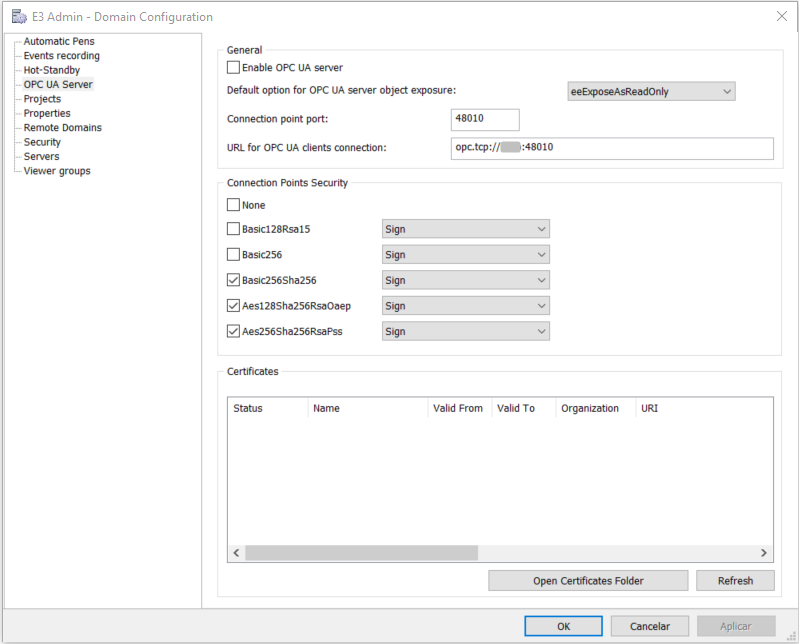
In the Default option for OPC UA server object exposure option, select the type of exposure for application objects:
- eeExpose: exposes
all server objects from an application for Reading and writing; - eeExposeAsReadOnly: exposes all objects as read-only;
- eeDontExpose: does not expose any object for external access.
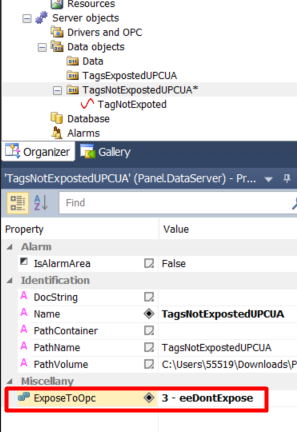
Note: Exposure can also be configured individually by using the ExposeToOPC property of the folder that contains the objects.
- The URL for OPC UA clients connection option is read-only and will be used later when configuring the client. Copy this information.
- In the Connection Points Security option, select a security level.
- Click OK to save these settings.
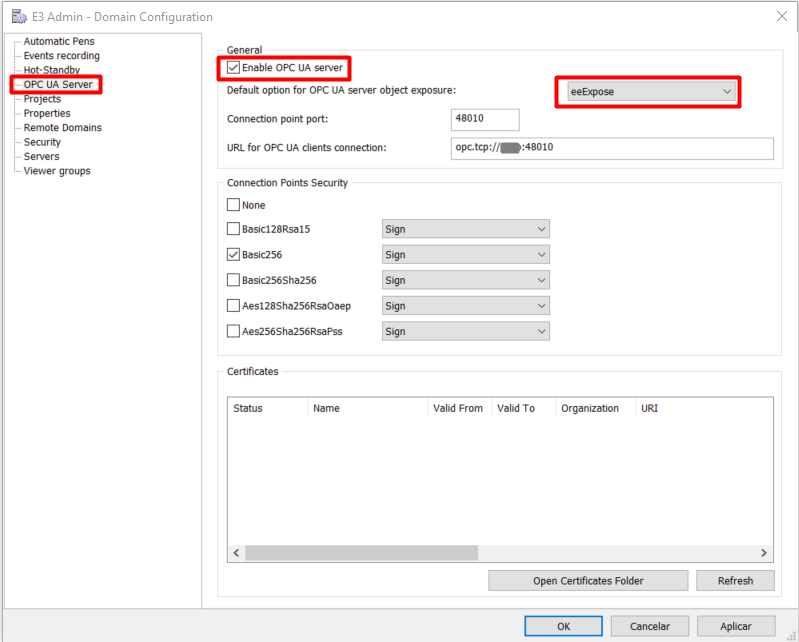
Right now, the OPC UA Server of Elipse E3 is already configured and enabled. Users must return to this window later on the next steps.
Configuration of Elipse E3 as an OPC UA Client:
- Create a new OPC UA Driver.
- Create an OPC UA subscription.
- Select the Driver and, on the Properties list:
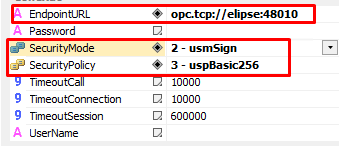
- Define the EndpointURL property with the URL copied previously from the OPC UA server.
- Also configure the values of the SecurityMode and SecurityPolicy properties, compatible with the ones defined on the server.
Starting communication:
- In the Server application, start the domain.
- In the Client application, activate the communication of the OPC UA Driver.
- Go back to the Domain Configuration window in the Server. If a security option was selected, a certificate is displayed with a Non-reliable status.
- Right-click that certificate and select the Trust option.
- Apply these changes and close the window.
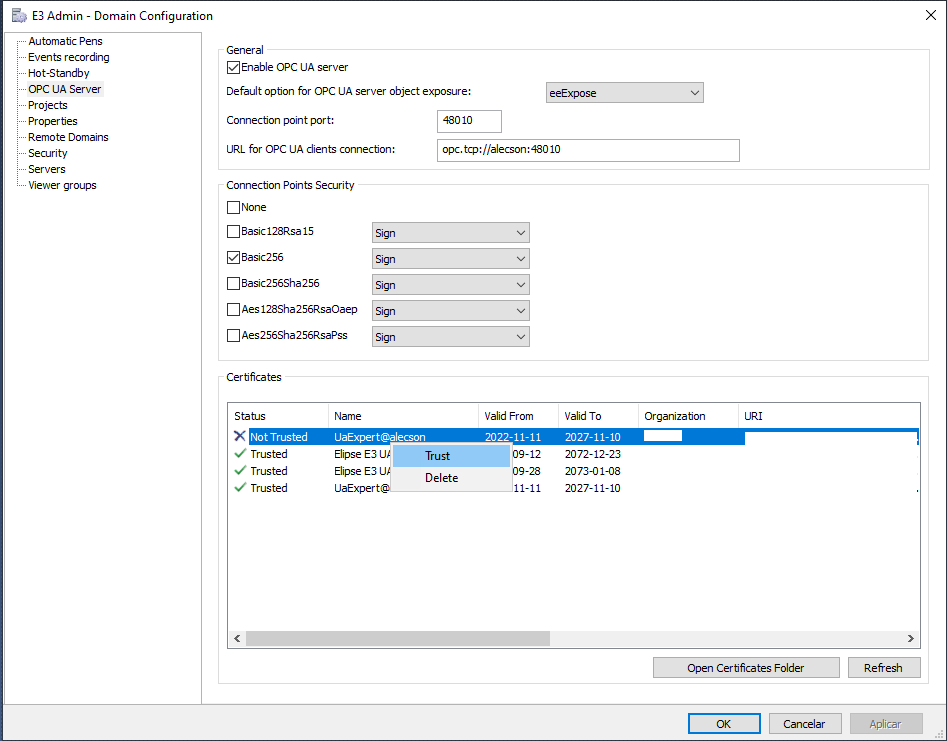
After this process, the instances of Elipse E3 are connected via OPC UA.
Users can use the Tag importer of the OPC UA Client Driver to import the tags provided by the server.
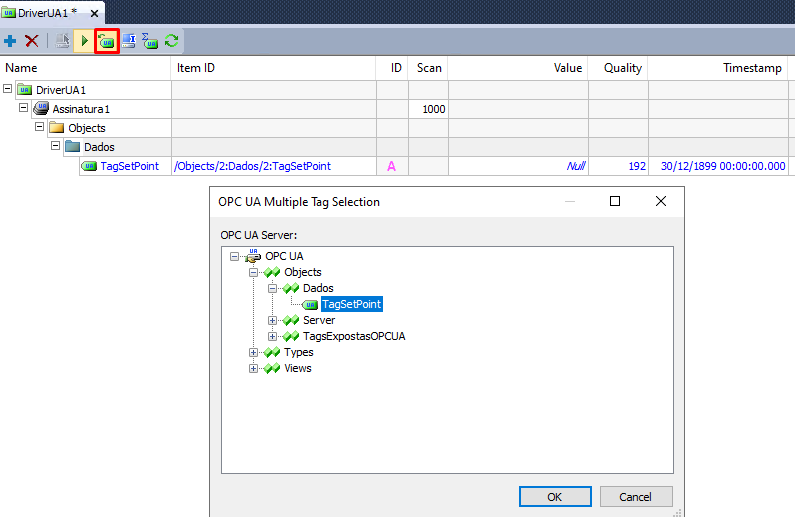
Example Application:
This article includes, attached, two example applications (client and server) demonstrating a practical usage of this functionality.
Usage instructions:
- In E3 Studio, open these two applications on different computers connected to the same network.
- On the computer with the Server application, copy the connection URL available in:
- E3 Admin → Domain → Options
→ OPC UA Server.
- E3 Admin → Domain → Options
- On the computer with the Client application, paste this URL in the EndpointURL property of the OPC UA Driver:
- Organizer → Server Objects
→ Drivers and OPC → UA Driver.
- Organizer → Server Objects
- Execute both applications.
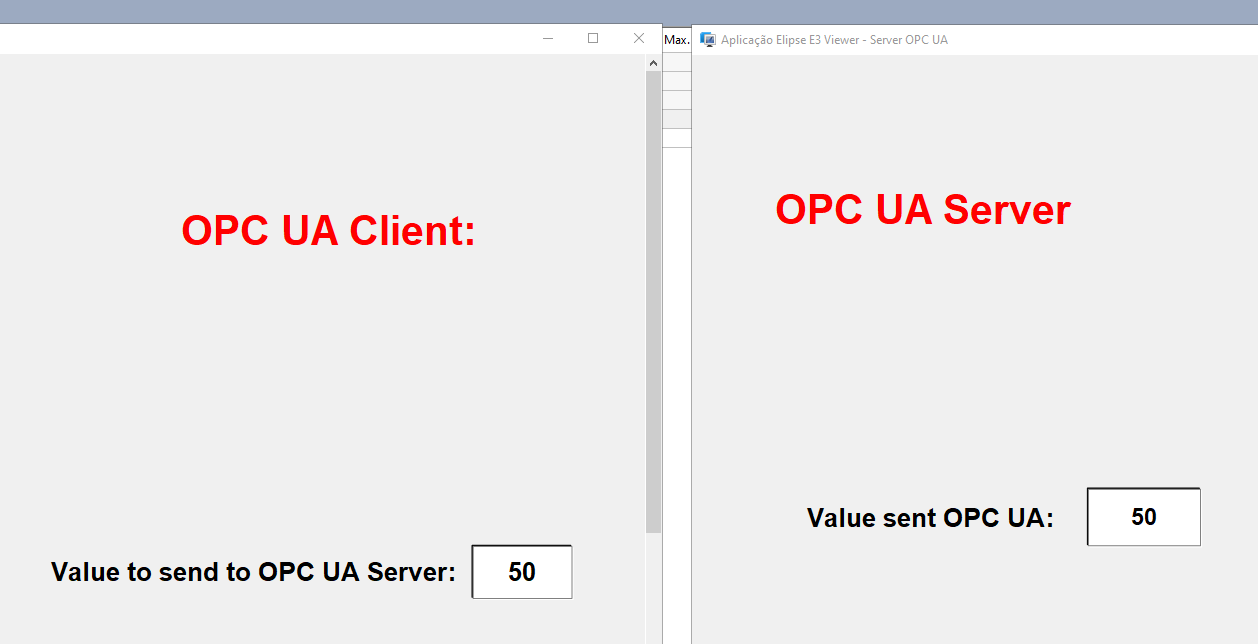
With these steps, users can establish a communication between Elipse E3 applications via OPC UA protocol, taking advantage of security and interoperability resources provided by this standard.
Anexos: